
GstarCAD 2027
To download GstarCAD 2027 Standard, Professional, or Plus, select the download below.
2/7/26 | build 260529 – 64-bit, includes VBA and IFC
Older Versions of GstarCAD
Do you have a license for a previous version? Download the appropriate installation files here.
Choose GstarCAD 2026 Standard, Professional, or Plus.
4/6/26 | build 251225 | 64-bit, including VBA and IFC via ARCHLine.XP
Choose GstarCAD 2025 Standard or Professional.
8/26/24 | build 241224 | includes VBA and IFC
Choose GstarCAD 2024 Standard or Professional.
12/9/23 | build 240419 | includes VBA and IFC
You can find even older downloads on our archive page.
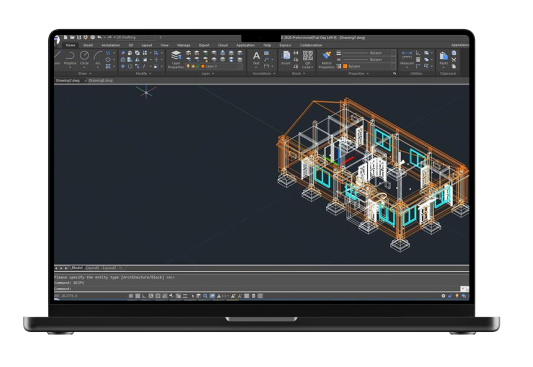
How to Install GstarCAD in 4 Steps
Follow these steps for a quick and proper installation on your system:
- Download the ZIP file
Click on the desired GstarCAD version above to download the installation file. - Unzip the file
Right-click the downloaded .zip file and select “Extract All.” - Start the installation with administrator privileges
Open the extracted folder. Right-click “setup.exe” and select “Run as administrator.” This is essential to grant GstarCAD the proper permissions in Windows. If you do not have the necessary permissions, ask your IT administrator to do this for you. - Activate or Start the Demo
Follow the on-screen wizard. After installation, you can enter your license code immediately or choose the free 30-day trial version.
Do you need a license?
Purchase your permanent license below to continue using GstarCAD without interruption.
GstarCAD 2027 Standard
For all conceivable 2D and 3D drafting tasks, with additional tools and maximum programmability. Dynamic blocks can be used but cannot be customized. No solid modeling.
GstarCAD 2026 Professional
Everything GstarCAD Standard offers, plus 3D solid modeling and the ability to configure dynamic blocks.
GstarCAD 2027 Plus
Everything GstarCAD Professional has to offer, plus Constraints and a large collection of useful tools.
Frequently Asked Questions (FAQ) about GstarCAD
We’re happy to help with any queries you may have. Can’t find your question here? Please feel free to give us a call or send us an email.
General
Yes. GstarCAD is one of the most widely used AutoCAD alternatives in the Netherlands. It is 100% legal, works on exactly the same .dwg basis and costs a fraction of the price of an Autodesk licence.
Yes. GstarCAD uses .dwg and .dxf formats by default. You can open and save files seamlessly without the need for conversion.
Yes, provided you have the Professional version. The NLCS applications (widely used in the Dutch civil engineering and infrastructure sectors) run smoothly on GstarCAD via specific add-ons supported by local IT partners.
Yes. You can use existing dynamic blocks without any problems. Please note: only in GstarCAD Professionalcan you create these dynamic blocks yourself or adjust their parameters.
Licences and installation
Click on GstarCAD 2025 Network License Manager Guide to view the network installation guide in PDF format.
GstarCAD offers permanent licences (purchase) and annual subscriptions. These are available as either standalone licences or network licences.
The Professional version includes all the features of the Standard version, plus full 3D modelling (solids) and the ability to edit dynamic blocks.
Interface en Functionality
Yes. Virtually all the familiar commands (such as LINE, TRIM, HATCH) and keyboard shortcuts (Ctrl+C, Ctrl+V) are exactly the same.
Click on the cog icon (Workspace Switching) in the bottom right-hand corner of the screen and select ‘GstarCAD Classic’ or ‘2D Drafting’.
Press the shortcut key Ctrl + 9 to bring the command line back on screen straight away.
Type the command PLOT. Under ‘Printer’, select ‘DWG to PDF.pc3’, choose your paper size and the window, then click OK.
Place the missing Dutch font files (.shx) in the folderC:Program FilesGstarsoftGstarCAD [versie]Fonts. Restart the programme to ensure the text is legible again.