
What is Bluebeam Cloud?
Bluebeam Cloud consists of two different applications: a web page and a mobile app. Below, we explain the difference between them.
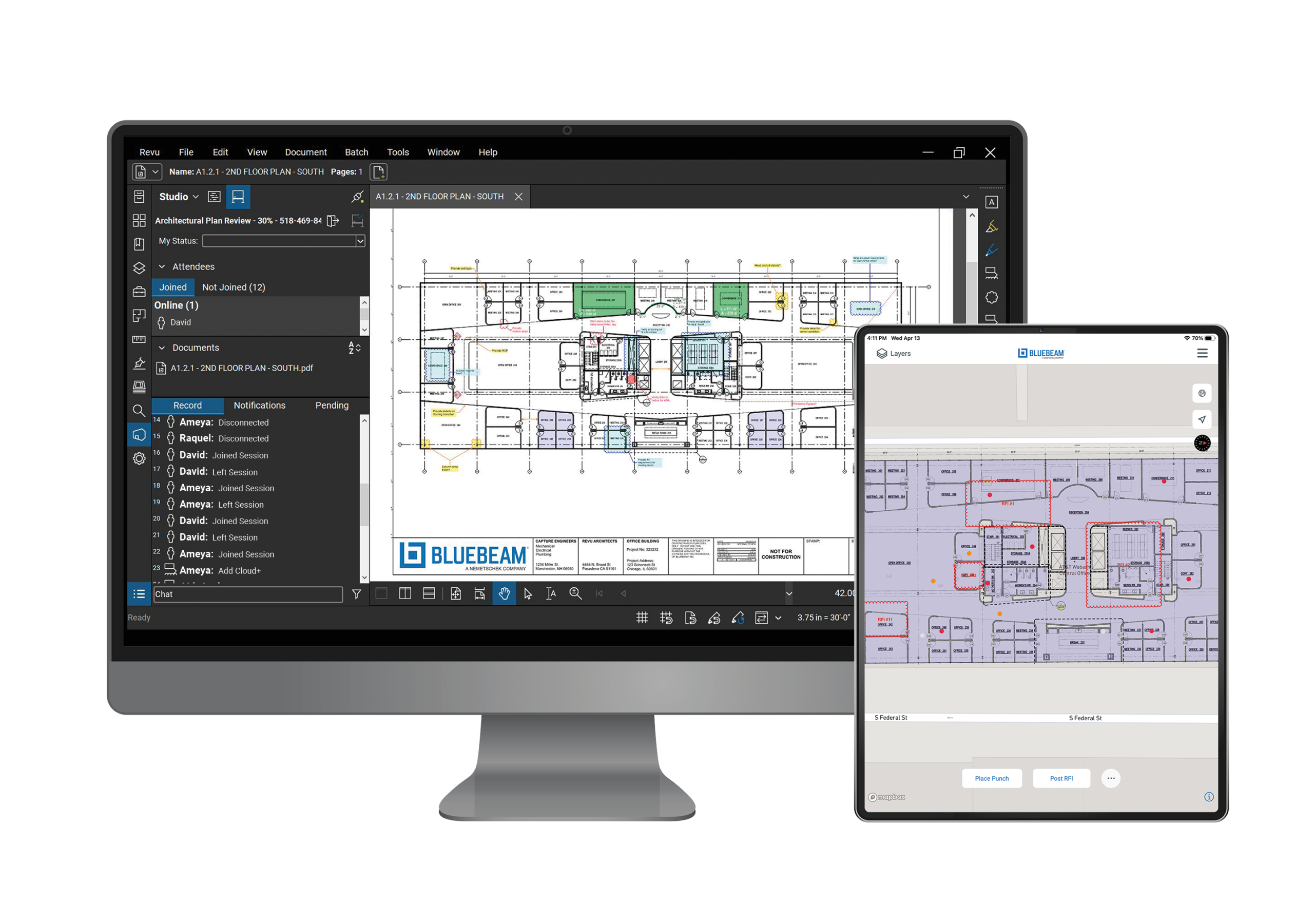
Bluebeam Web
With Bluebeam’s web app, you can easily open all your files and perform simple tasks right in your web browser. You don’t need to install the full-featured software itself. This makes it especially handy when you need quick access to the right files to make notes, take measurements, share files, or start a session. It’s also convenient for Mac users, since the web version of Bluebeam does work on Macs.
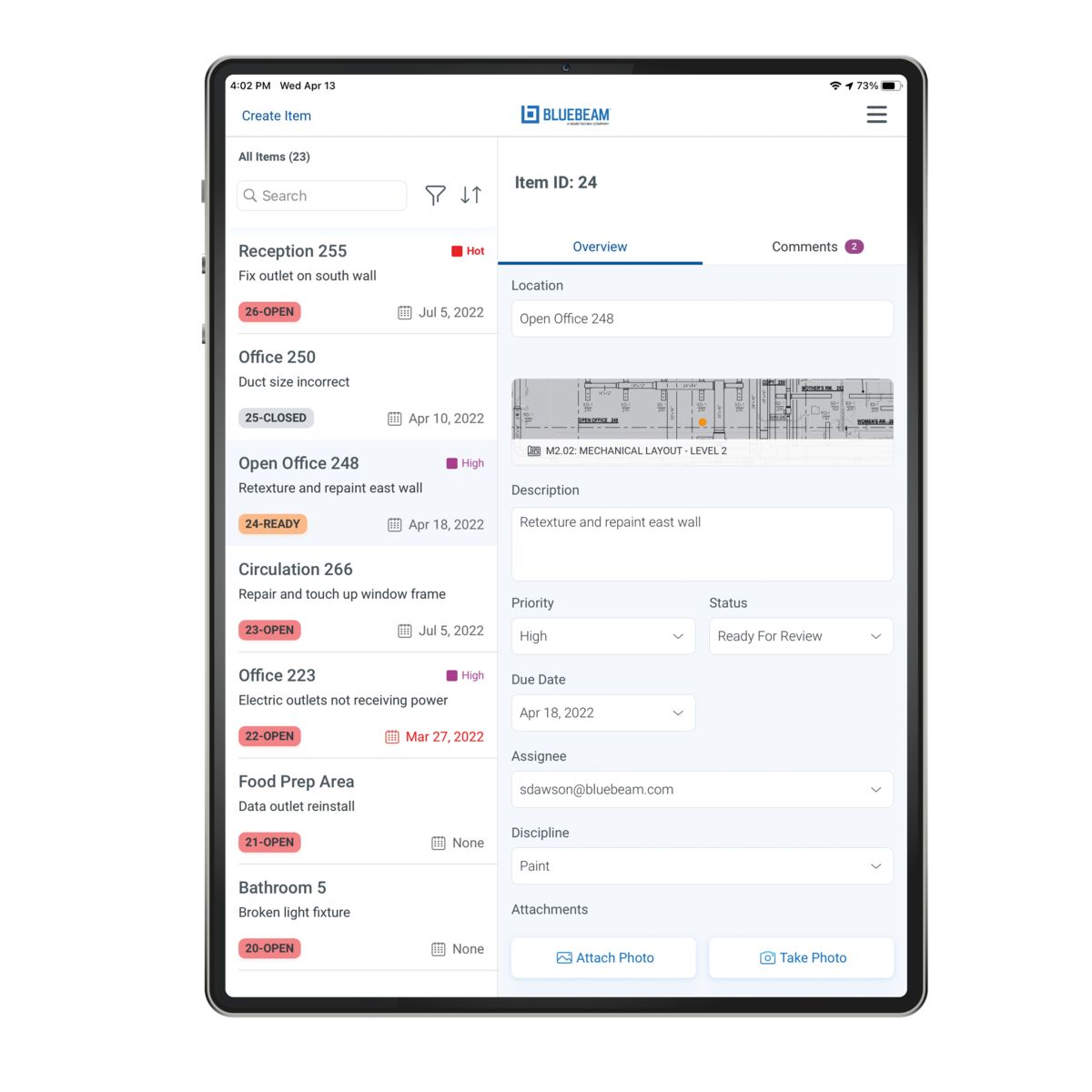
Bluebeam Mobile App
The Bluebeam mobile app has the same features as the web version, but is available on your favorite mobile device. It’s primarily designed to make things easier on the construction site. You can download the app onto your tablet or iPad, and it provides both online and offline access to all your files. For example, you can add images or notes on-site and upload them later to the cloud.

Why should I use Bluebeam Cloud?
- Bluebeam Cloud is included with your Bluebeam Revu or Max license. So you don’t pay anything extra for it!
- It’s lightweight and therefore fast—perfect if you don’t need complicated tools or are on the go.
- A major added benefit of Cloud is that it can also be used by Apple and Linux users. So you don’t need Windows, because it opens in the browser.
Installing the app
Follow these steps to install Bluebeam Cloud on your tablet or iPad.
It looks something like this.

Open the app. Select the Germany region and log in with your Bluebeam ID (BBID). You’ll need an active Bluebeam subscription (Basics, Core, or Complete) to do this.
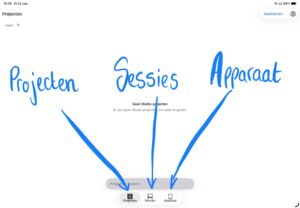
You can now open a project, join a live session, or find files locally on your device .
- Select“Projects” if you want to access all files within a shared project. This allows you to work in the Bluebeam Cloud, but you cannot work on the same file at the same time as your colleagues. You can check in the file, work on it individually, and then check it out again to synchronize it properly with your team.
- Select“Sessions” if you want to work on a single file at the same time as your colleagues. This feature works only for PDF files (and not, for example, for Excel files from the same project). Sessions are usually scheduled in advance with the participants. With Bluebeam Basics, you can only join a session; with Core, Complete, and Max, you can also start new sessions yourself.
- To open local files or start projects, select “Device.” This allows you to work offline—that is, not in the Bluebeam cloud—but you can still access other cloud storage services if you’ve linked them to your tablet (such as OneDrive or Dropbox).

Enter the code associated with the project or session. All the files you need will then appear.
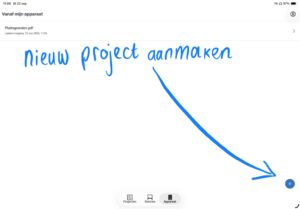
To create a new project or add a file in the app, click the blue + icon in the lower-right corner. Then select the desired file.
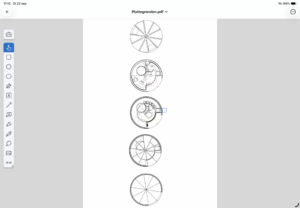
Click on the file you want to work on. Above is a sample drawing. You can now start making notes or taking measurements. If you’d like to know how these features work, feel free to keep reading.
To move around the drawing, swipe your finger across the screen. To zoom in or out, use two fingers to pinch the screen.
Launch Web Version
Would you prefer to use the web version of Bluebeam Cloud? If so, follow the steps below to get started. Or scroll down to see the features.
To access the web version of Bluebeam, go to https://app.bluebeam.de/ or click the button below.

Are you in the Netherlands? If so, select Germany as the server region.

Next, log in with your Bluebeam ID and password.
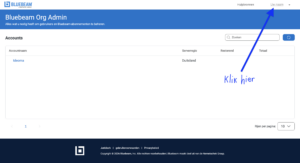
Once you’re logged in, you’ll be taken to the org-admin screen, where you can see, among other things, how many licenses you have in total and how many are currently in use. Your name appears in the upper-right corner. Click on it.
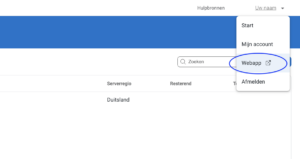
A window will now appear where you can select “Web App.” This will open the web version of Bluebeam Cloud.
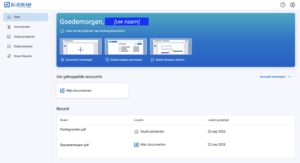
This is the home page for the web application. Here, you can open projects and files, view recent files, or start new projects or studio sessions.
Once you’ve opened a file, you must first check it out before you can edit it, unless you’re in a live studio session. This works the same way as in the mobile app. This and the other features are explained below under “Features.”
Features
Below, we’ve listed the features of Bluebeam Cloud.

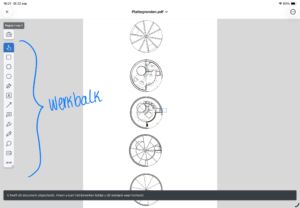
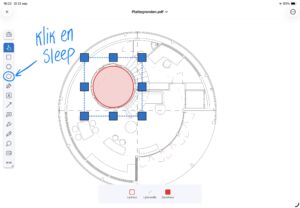
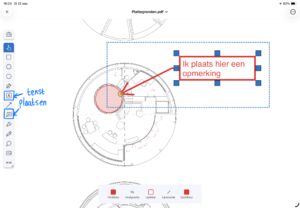
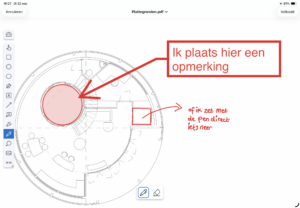
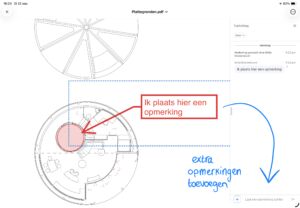
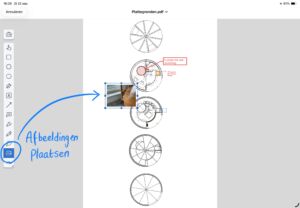

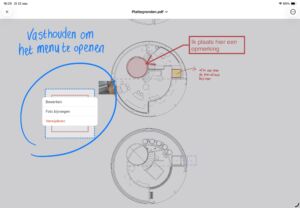
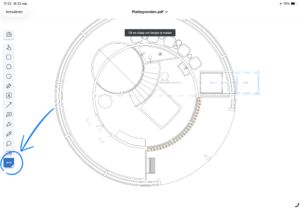
Select the measurement tool.
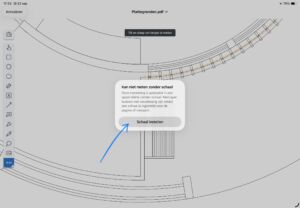
If the scale of the drawing has not yet been calibrated, do so first by following the steps.
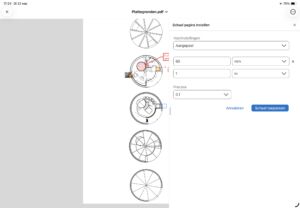
In the menu on the right, select the appropriate scale and desired precision.
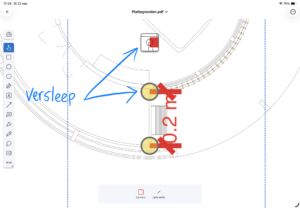
Now place the two yellow circles where you want to measure by dragging them to the correct lines on the drawing. You’ll also see a zoomed-in window appear at the top to make it easier to see exactly where you’re measuring.
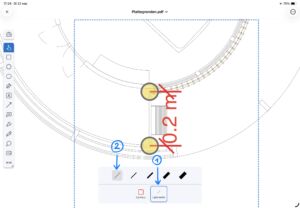
If you have entered a length or area, you can change the line thickness and color at the bottom of the screen.
There are several ways to collaborate in Bluebeam Cloud:
- Studio Project
You can join a studio project, after which all files within that project will become visible. You can check files in and out to ensure that synchronization works properly and that you and your colleagues take turns working on a file. Your team members will be able to see your changes immediately; they sync automatically.
- Studio Session
During a Studio session, you and your colleagues can work on a file together at the same time. This means you don’t have to check the file in or out. Please note: To create a new Studio session or Studio project yourself, you need at least a Core, Complete, or Max subscription. With a Bluebeam Basics subscription, you can only join a session, but you cannot start one yourself.
- Offline
Don’t have internet access—for example, because you’re at a construction site? If so, make sure you’ve checked in (or downloaded) the correct file in advance. You can then add markups offline. As soon as you have an internet connection again, the app will automatically sync all changes to the cloud.
Want to know more?
Would you like to learn more or get some additional explanation? Then watch this video on how to add markups in Bluebeam Cloud.

 Bluebeam
Bluebeam Cloud
Bluebeam
My coworkers need to use Bluebeam from time to time. How do I set that up?
Bluebeam
How do I know if my coworkers are using their Bluebeam license?
Bluebeam
For who is still working with Bluebeam 20
 Bluebeam
Bluebeam Max is out!
Bluebeam
Bluebeam delivers again!
 Bluebeam
How well is my data protected on Bluebeam’s German server?
Bluebeam
Bluebeam Partner Certifications
Bluebeam
Email “Bluebeam – Important Org Admin Information”
Bluebeam
The Bluebeam outage is over
Bluebeam
The Bluebeam outage is over
Bluebeam
Bluebeam Conference in the Americas
Bluebeam