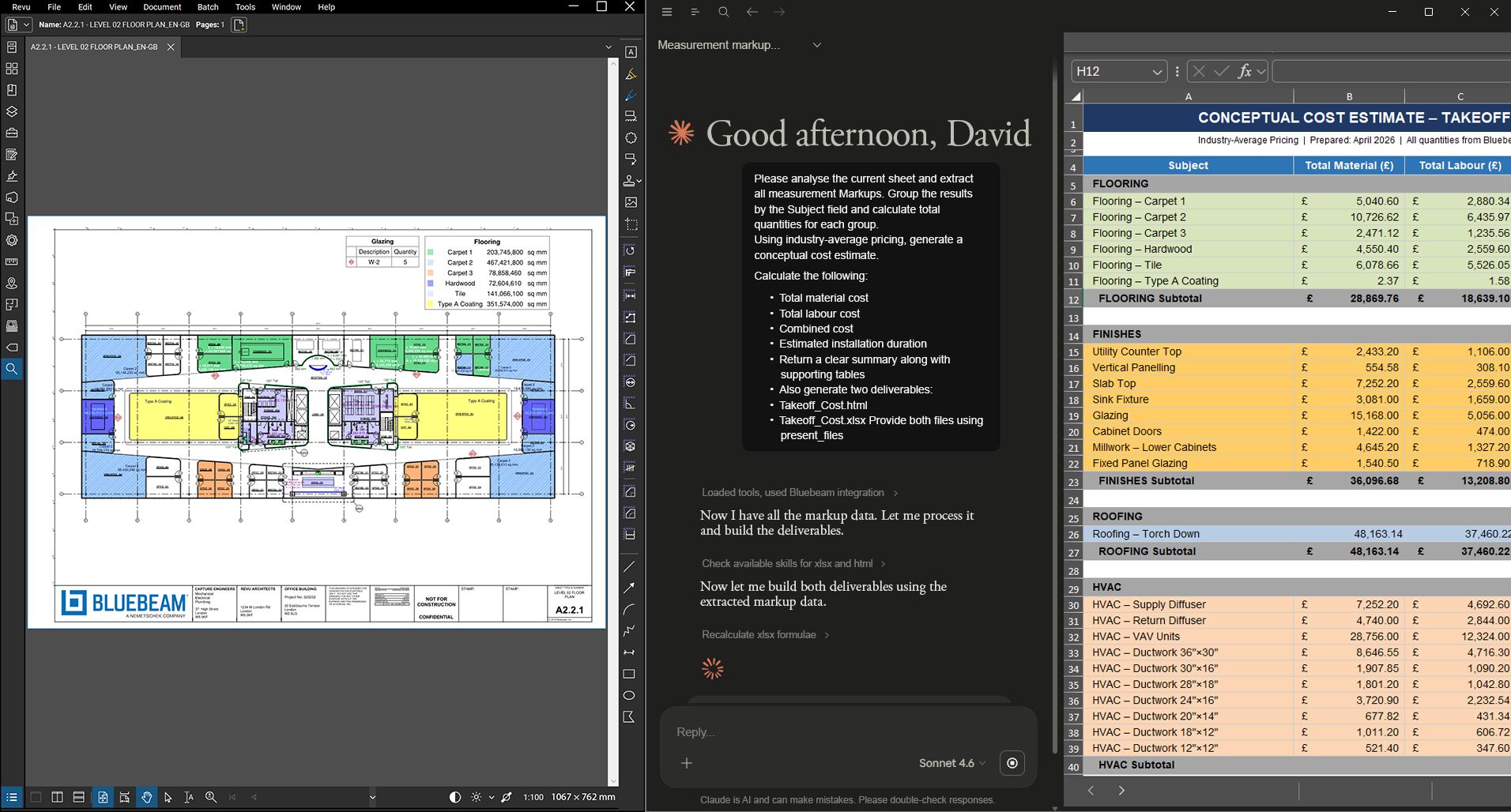
Use AI to automate tasks
Connect Bluebeam Revu to Claude, GitHub Copilot, or AnythingLLM to easily retrieve data, add or edit markups, or automate calculations. All you have to do is ask the AI.
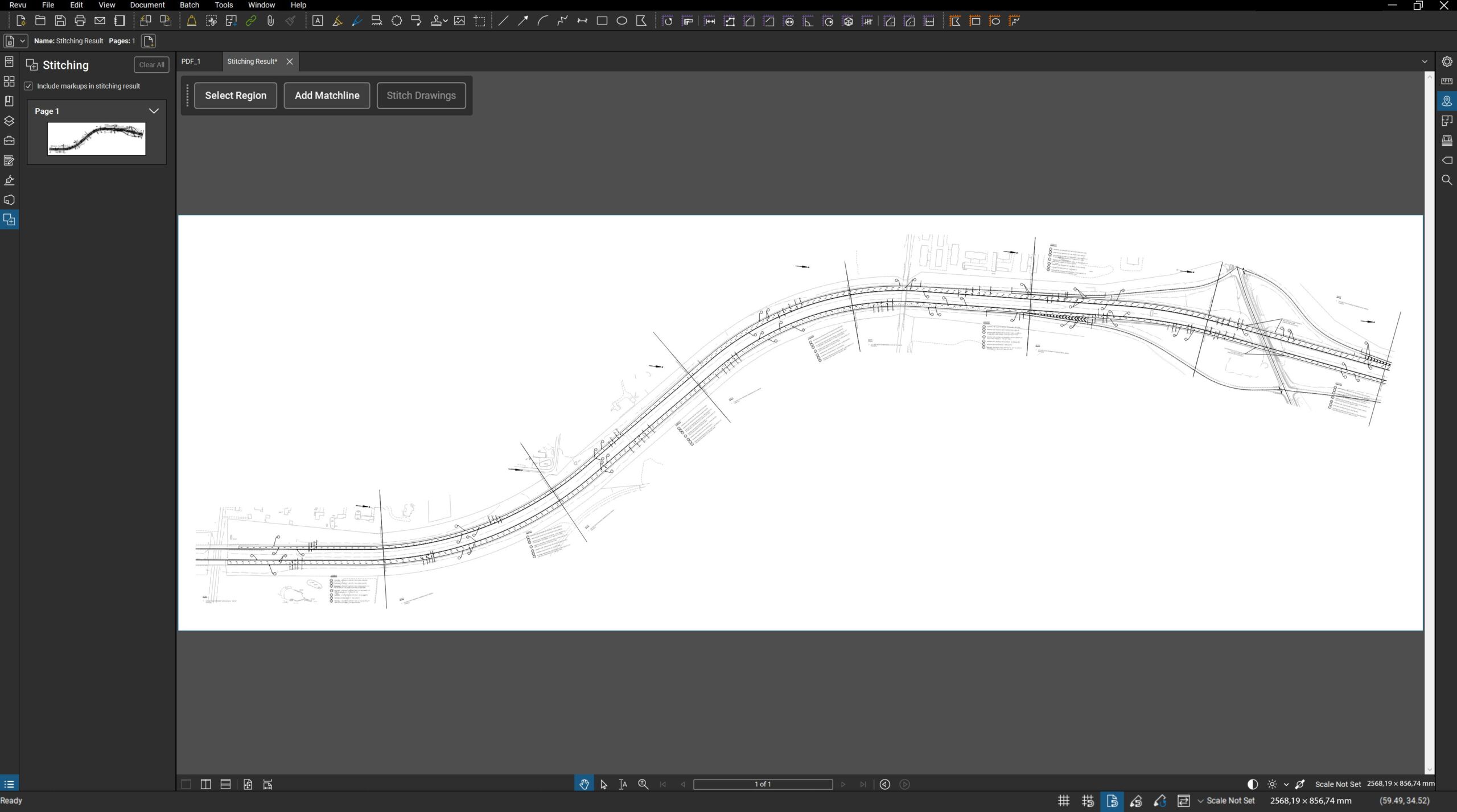
Stitching / Joining
If you want a general overview of your project, Bluebeam has added a very interesting feature to the Max subscription. With stitching, different pages of a document are automatically “stitched” together, allowing you to view the entire project at a glance.
Magic Markups
In Bluebeam Max, you can automatically duplicate markups exactly, convert them, or add an offset using the “magic markups” feature.
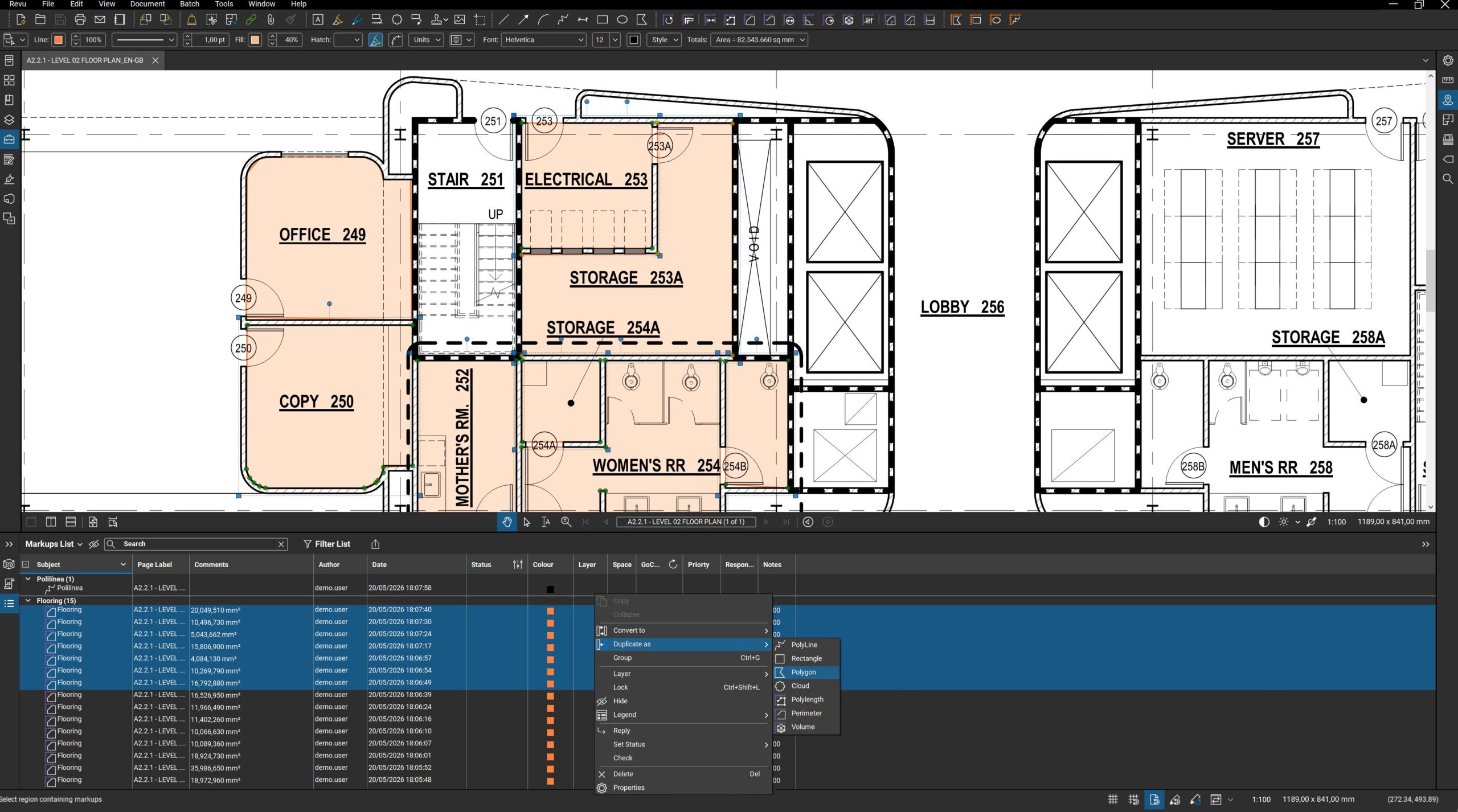
Duplicate
Of course, you could already duplicate a visual markup in Bluebeam. What’s new in Max is that the geometric data and technical meaning are also carried over. This allows you, for example, to turn a duplicated surface markup into a 3D shape or outline. In addition, you can simply ask AI to do this for you, instead of having to adjust everything manually yourself.
To do this, you can give the AI assistant a prompt such as: “Duplicate all concrete areas on this floor as a volume markup with a thickness of 200 mm.”
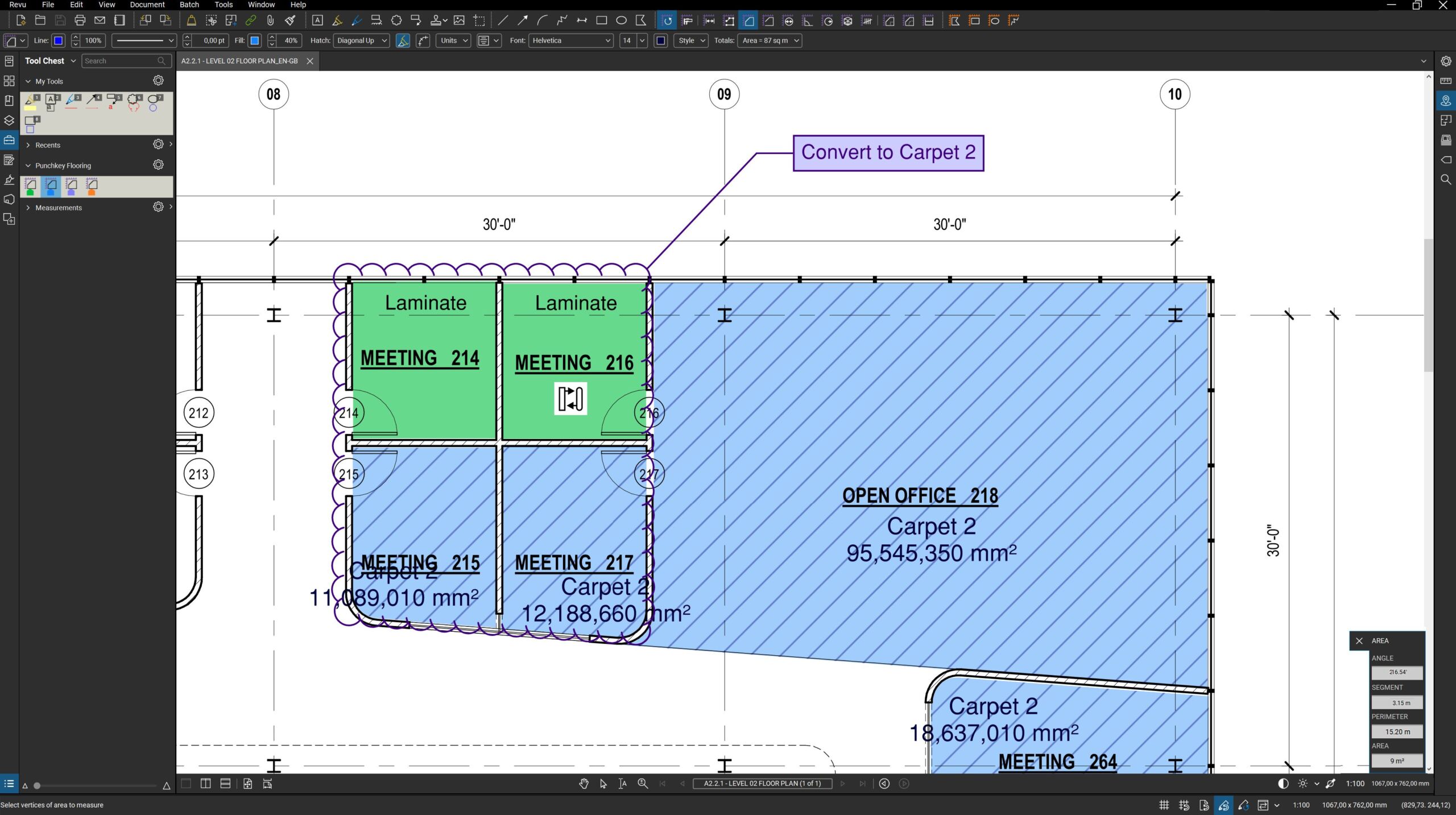
Convert
You can also customize the type of marking while retaining its geometric shape. This is useful if you want to change the material or type of marking—for example, if you want to change a floor surface from concrete to wood.
For example, ask the AI assistant: “Check all the yellow markings on this template.” Wherever the AI analysis identifies an ‘Asphalt’ specification, convert the area measurement to a concrete floor markup (PolyLength for the formwork) and change the color to gray.”
Offset
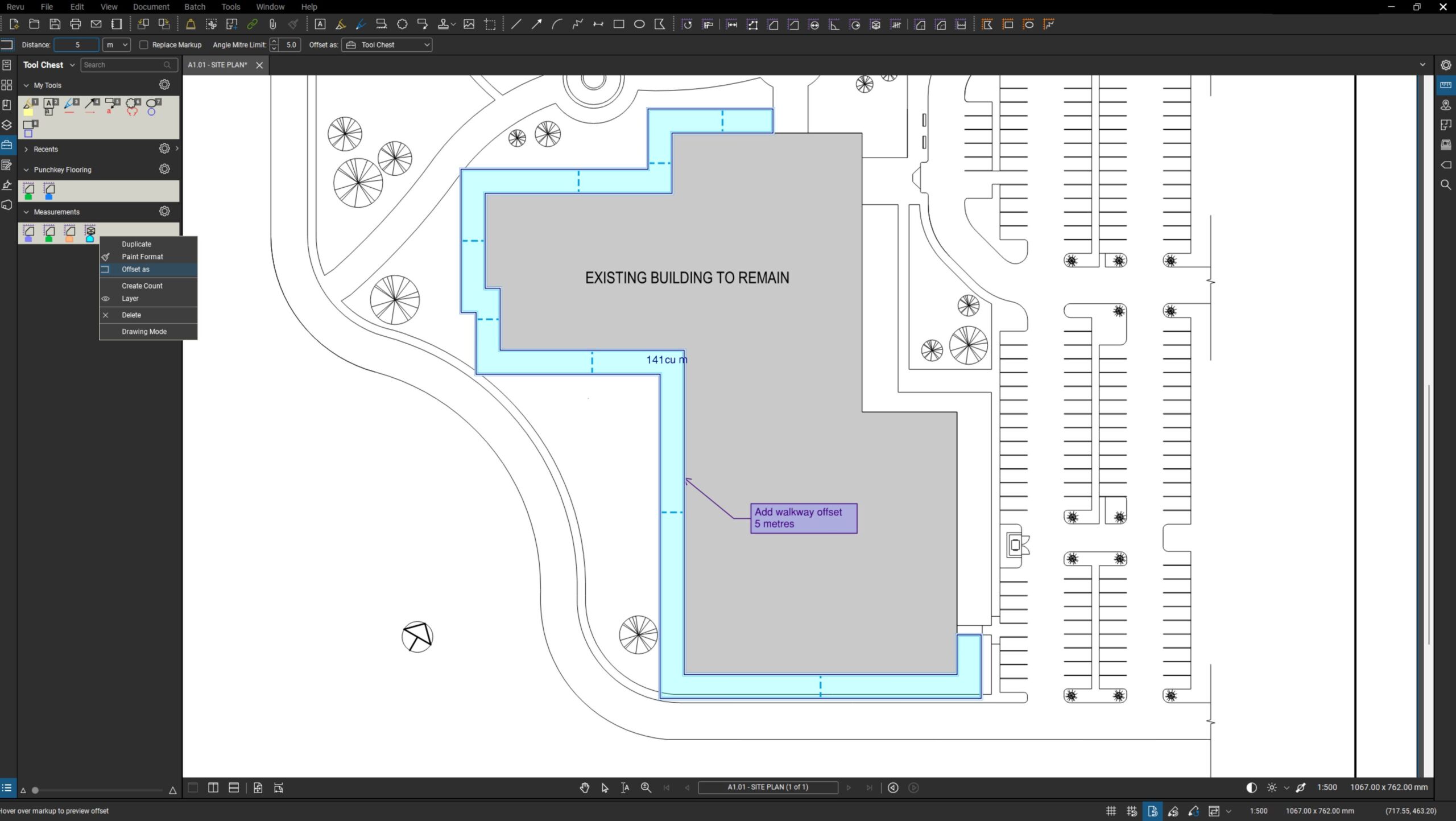
With the offset tool, you can create parallel markers at a precisely defined distance from an existing object. You can use the “o” shortcut key for this. You can save an offset as a new marker or replace the existing marker.
You can use the AI assistant to issue a command such as: “Select all drawn cables and pipes (PolyLines) in this discipline. Apply a Magic Markup Offset of exactly 1.5 meters on both sides to visually mark the required safety and excavation zones.”
Smart Review
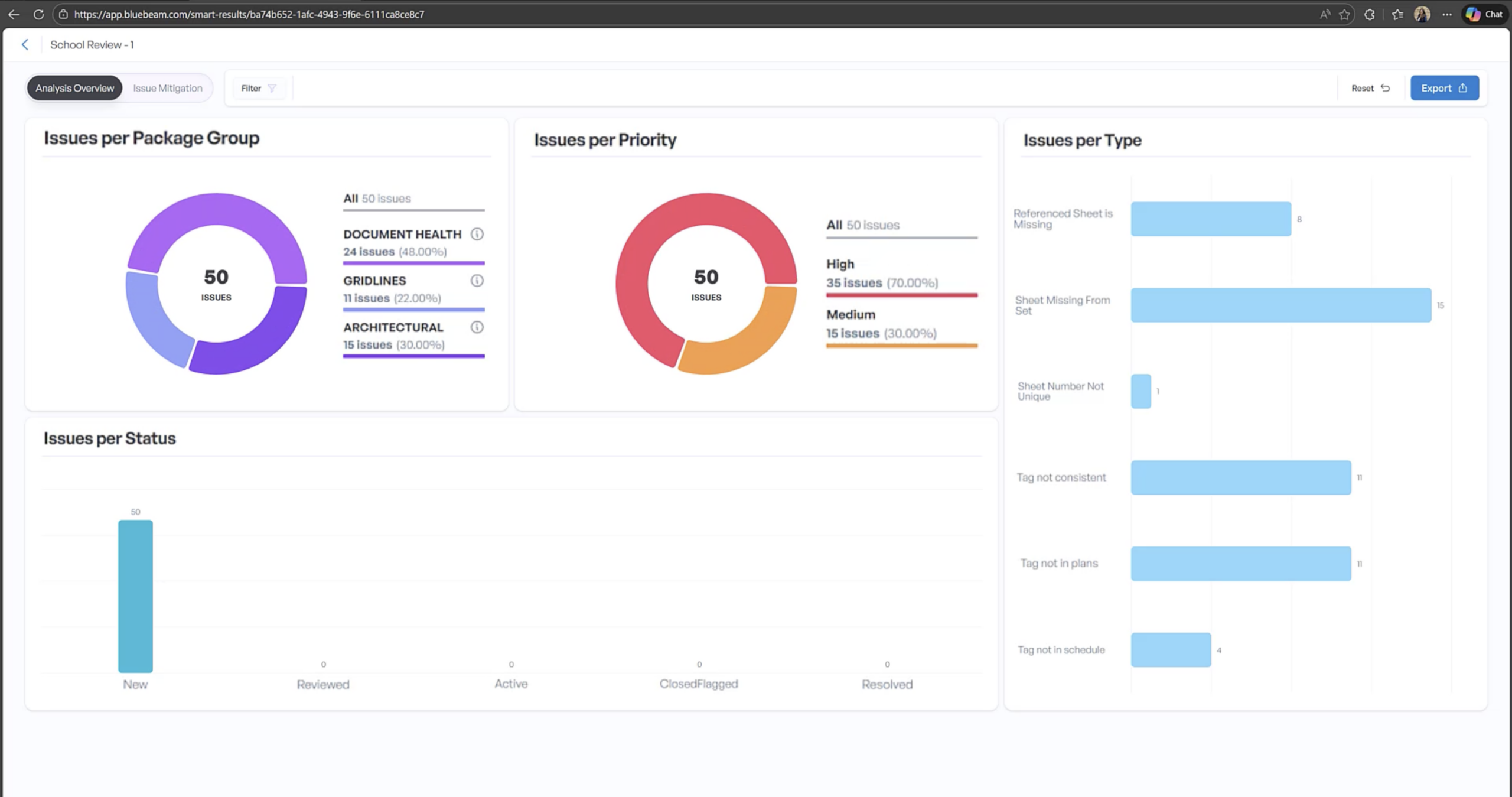
With Smart Review, you can avoid costly mistakes. Let the AI tool check your PDFs for inconsistencies or missing data.
Smart Overlay
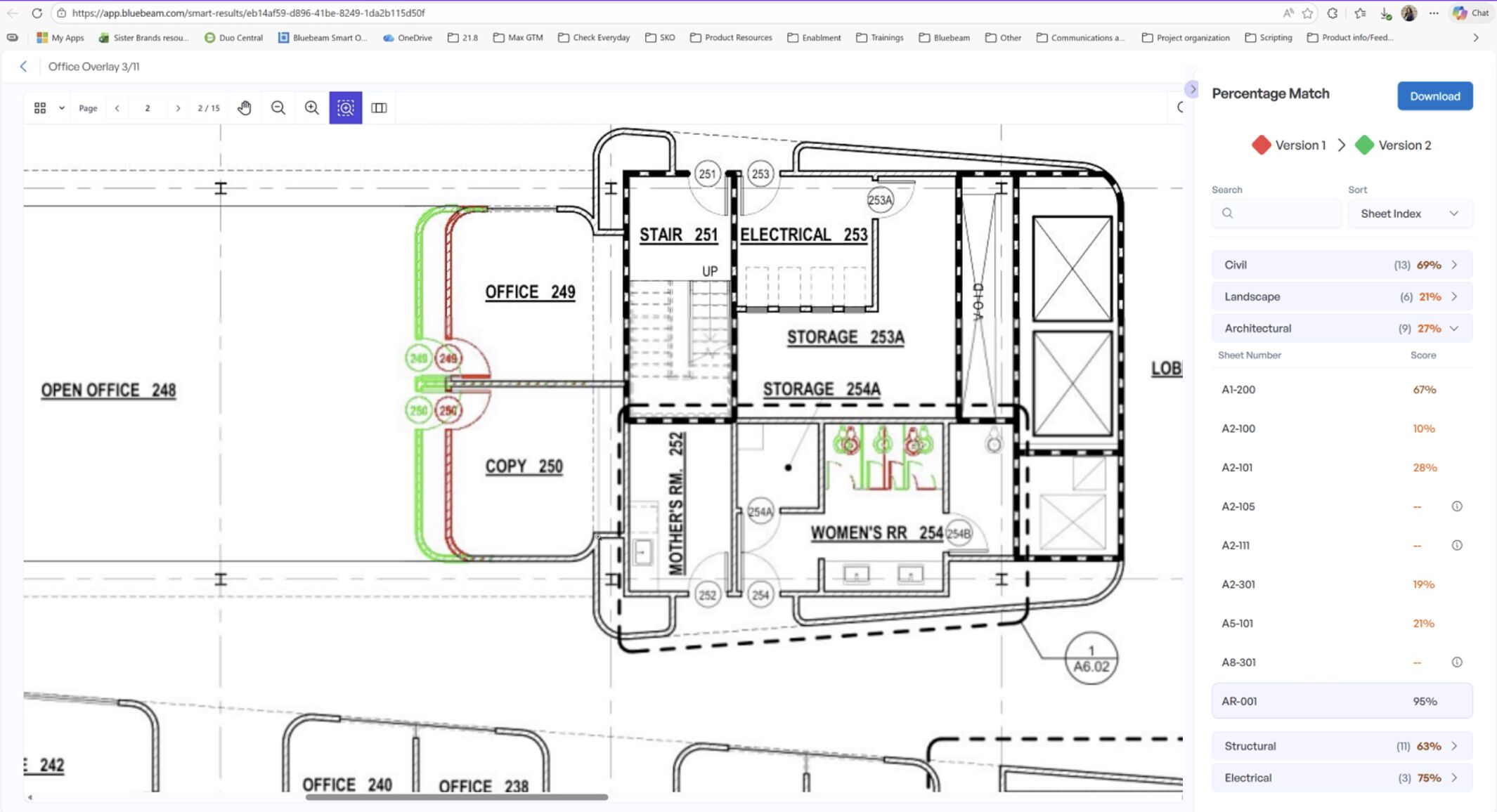
Documents are automatically compared with one another, regardless of the scale of the drawings. This is ideal when collaborating with different disciplines on your construction project. Changes are automatically detected and clearly displayed, so you can be sure you won’t overlook anything.
Connected Studio Sessions with Revit
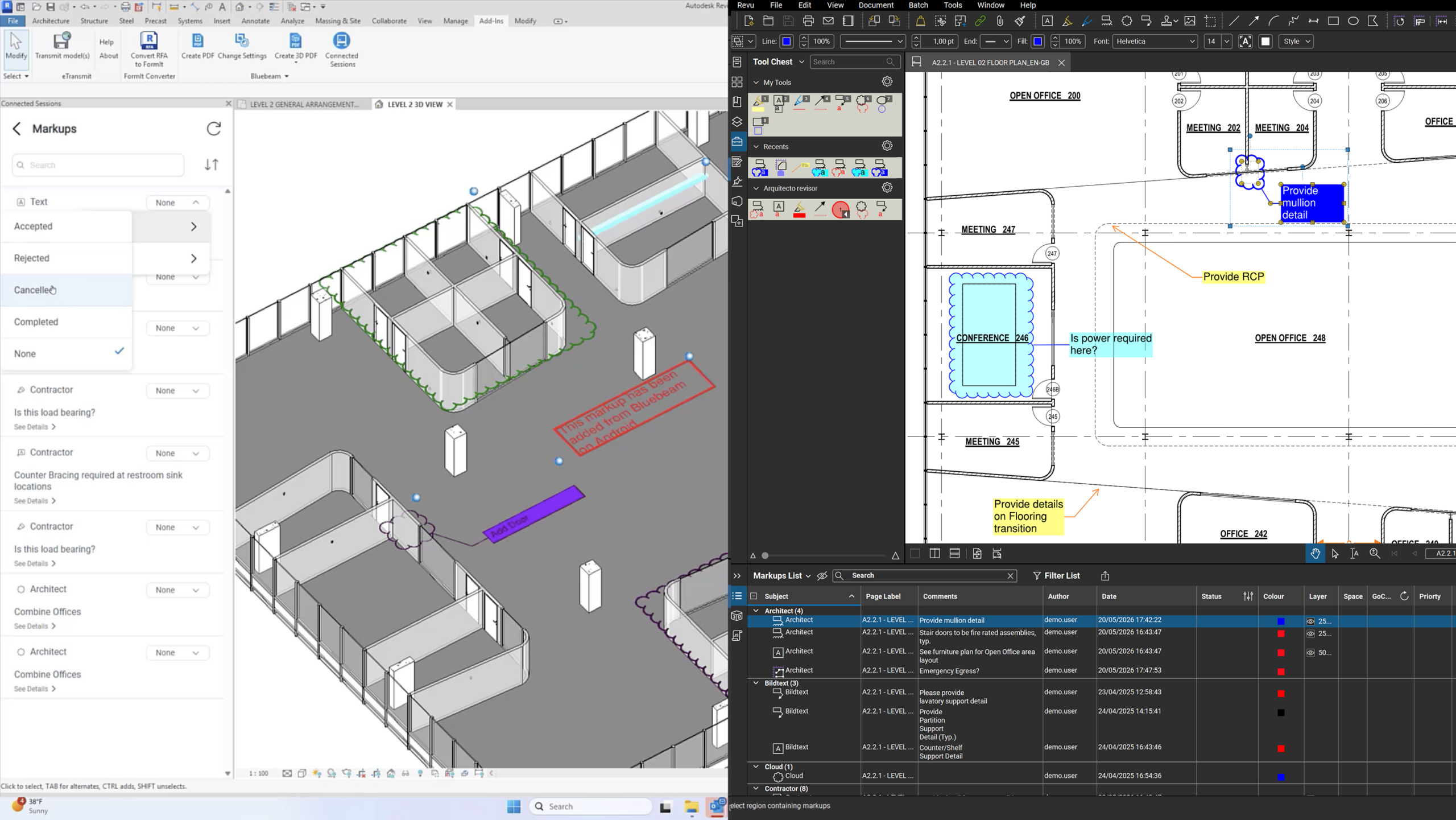
With Bluebeam Max, you can collaborate in real time with your colleague working in Revit through studio sessions. Annotations made in Bluebeam are displayed simultaneously in the 3D Revit model, and vice versa. To do this, you work from the Bluebeam Cloud.

Convinced?
Order your Bluebeam Max license from IDEOMA. We guarantee you a level of service and product expertise you won’t find anywhere else.